
How to Use a Sensitivity Converter
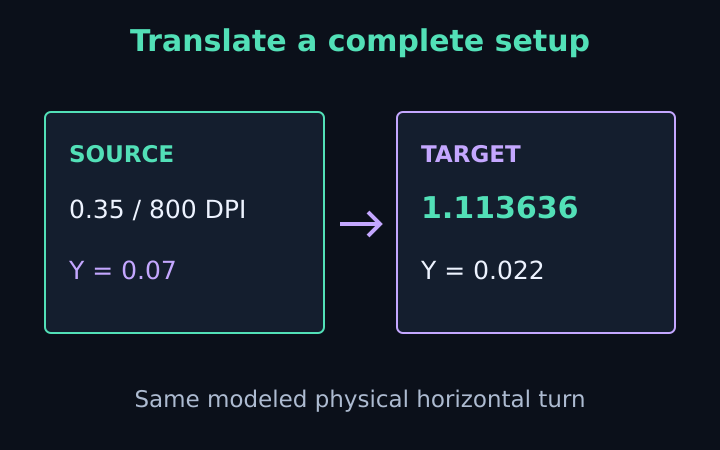
A sensitivity converter translates a mouse setting between two angular-input scales. Its most useful promise is narrow: under the stated linear-input assumptions, the new setting should require the same physical mouse travel for a horizontal full turn. It cannot make two games feel identical in every situation, and it cannot determine an ideal setting for a player. This walkthrough follows a fictional VALORANT-to-CS2 conversion while explaining which inputs belong in the calculation, why coefficients remain editable and what to verify after copying the result.
Choose the physical relationship you want to preserve
AimSensKit matches centimetres of mouse movement for a 360-degree horizontal rotation. It starts with source DPI, source sensitivity and an angular coefficient measured in degrees per mouse count per one entered sensitivity unit. Multiplying those values produces degrees turned per inch of mouse travel. The target uses its own DPI and coefficient to reproduce that physical relationship.
This method is often called a turn-distance match. It does not match a fixed number of screen pixels, a particular fraction of the visible monitor or the apparent speed of an object moving through a field of view. Those questions require different definitions. Begin by deciding that a full horizontal turn is the comparison you want; otherwise a mathematically correct conversion may answer the wrong question.
The tool’s reference presets are starting assumptions rather than publisher-certified current defaults. Selecting a game fills its reference angular coefficient and identifies the expected sensitivity notation. The coefficient stays visible and editable because game settings, altered input behavior and custom configurations can change the relationship you need to model. Review it before treating the output as a verified game setting.
Enter a complete source setup
For the fictional example, select VALORANT, enter sensitivity 0.35 and source DPI 800, and use the reference coefficient 0.07. These numbers describe one source relationship; they are not recommendations. If your actual source DPI is different, enter that value rather than leaving the example unchanged. A sensitivity number without its associated DPI does not specify a physical turn distance.
DPI is the input count density assumed by the calculation. The calculator accepts a whole positive number and does not measure the sensor’s actual response. A device setting and a physically measured count density may differ. Use a clearly identified source value and retain it in the note, especially when comparing profiles that change DPI between games or applications.
The source angular coefficient describes how the entered sensitivity number translates counts into degrees. Under this example, sensitivity 0.35 times coefficient 0.07 gives 0.0245 degrees per mouse count. At 800 counts per inch, that is 19.6 degrees per inch. Dividing 360 degrees by 19.6 gives the inches required for a full turn, then multiplying by 2.54 expresses the result in centimetres.
Set the target DPI before reading the new number
Select CS2 as the target, keep target DPI at 800 and use reference coefficient 0.022. The matching target sensitivity is 0.35 times 0.07 divided by 0.022, approximately 1.113636. That ratio works here because the source and target DPI values are equal. The full formula includes both DPI values, so do not memorize the shortened ratio as a universal conversion rule.
With target DPI 1,600 instead, the matching sensitivity halves to approximately 0.556818. Doubling count density while halving the target sensitivity leaves their product unchanged, given the same target coefficient. The resulting physical full-turn travel is therefore unchanged in the model. This is a conversion example, not a claim that either hardware configuration is preferable.
Read the target game label and sensitivity notation beside the result. Some presets expect an ordinary numeric sensitivity, while Fortnite expects percentage points. A value of five in that preset means five percent, not the decimal fraction 0.05. The article about conversion mistakes to catch shows why mixing these formats can produce a large error.
Inspect the physical-turn result and eDPI separately
The example’s full-turn travel is approximately 46.653 centimetres. A 180-degree turn uses half that distance under the same linear relationship, and a 90-degree turn uses one quarter. These checkpoints make the physical interpretation easier to see. They are arithmetic distances, not a measured record of your mouse movement or a guarantee that an actual game follows the assumptions.
Source eDPI is 800 times 0.35, giving 280. Target eDPI is 800 times approximately 1.113636, giving approximately 890.909. The different eDPI values do not contradict the matched turn distance. The games use different angular coefficients, so equal physical travel requires different products of DPI and sensitivity. eDPI is most meaningful within a consistent game’s sensitivity convention.
Percentage notation changes the eDPI convention
For the Fortnite preset, displayed percentage points are divided by one hundred before calculating its conventional eDPI. The angular coefficient already corresponds to one entered percentage point, so the physical calculation must not divide by one hundred a second time. Keep these two roles separate: the turn calculation uses the coefficient’s stated unit, while eDPI uses the documented sensitivity convention.
Copy the assumptions rather than just the answer
Copy settings and assumptions puts a plain-text note on your device clipboard. It includes source and target names, sensitivities, DPI values, angular coefficients, physical full-turn distance and scope exclusions. This is more useful than copying only 1.113636 because another reader can reconstruct what that number means. When clipboard permission is unavailable, the tool provides selectable text for manual copying.
The calculator does not upload its fields, save localStorage history or create a user account. Contact messages are a separate deliberate action. Your device or the application where you paste a note may retain clipboard contents. Use fictional inputs when reporting an issue, and avoid attaching private records that are unrelated to the arithmetic.
The mouse sensitivity converter displays errors when active fields are empty, non-finite or outside its software bounds. It hides an earlier result and disables copying until the entry is corrected. This prevents a stale valid answer from being mistaken for the result of an invalid current setup. Bounds describe what the software accepts, not what every game’s settings menu allows.
Confirm the result in the target environment
Enter the target number in the appropriate game setting and observe the precision the game actually accepts. A settings slider or saved configuration may round the value, changing the exact physical match. Keep the accepted setting in your final note rather than assuming the displayed six-decimal calculator result has been stored unchanged.
In a suitable stationary test environment, compare horizontal turn travel with the intended physical distance. Use consistent starting direction and measurement conditions, and avoid confusing scoped or aiming-down-sights movement with the hip-fire setting. If the measured response differs, review coefficients, actual DPI, input processing and rounding instead of assuming the conversion formula can correct an unknown pipeline automatically.
AimSensKit is independent and not affiliated with Riot Games, Valve, EA, Respawn or Epic Games. Game names identify the reference presets and examples only. The strongest use of a conversion is a transparent starting note followed by verification: a source setup, a defined physical relationship, an explicit target calculation and an actual check of the setting you entered.
Frequently asked questions
What does this converter preserve?
Horizontal hip-fire mouse travel for a full turn under the stated linear coefficient and DPI assumptions.
Are presets publisher-certified defaults?
No. They are editable reference assumptions. Verify the current game configuration and physical response.
Keep the assumptions with the setting
Use the sensitivity converter with your own DPI, sensitivity and verified coefficients. Copy the conversion note, check the target notation and confirm a physical horizontal turn before treating the new setting as a match.
More notes from the setup desk
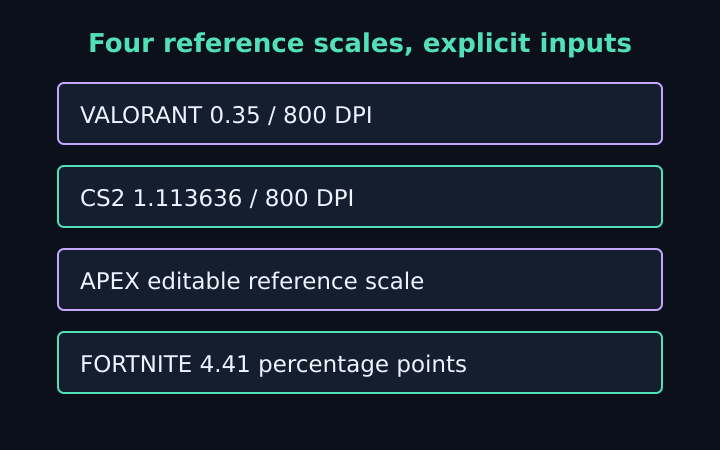
VALORANT to CS2 Sensitivity: Worked Examples
Follow five explicit mouse-setting examples for CS2, VALORANT, Apex and Fortnite, with DPI changes, percentage units and physical-turn checks.
Read the note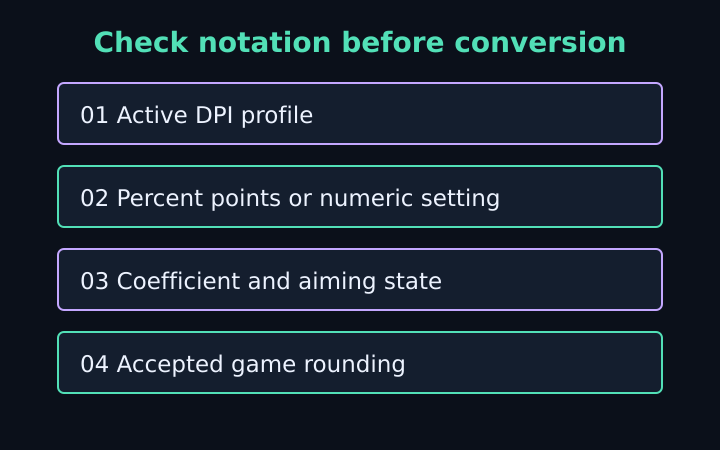
Sensitivity Conversion Mistakes to Catch
Check DPI profiles, percentage notation, coefficients, aiming states and game rounding before trusting a mouse-sensitivity match.
Read the note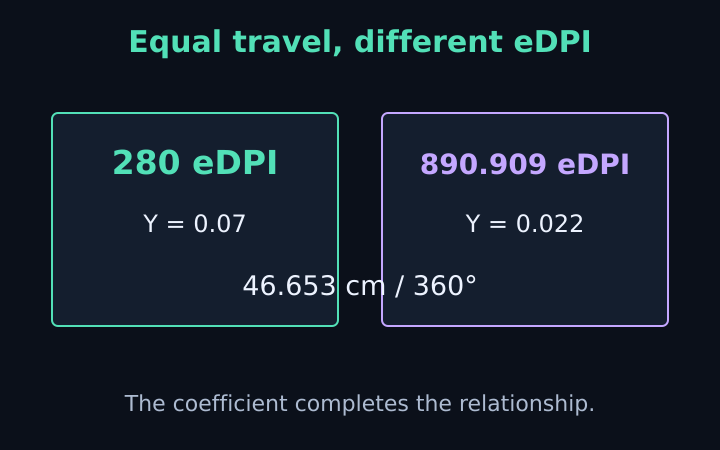
eDPI vs cm/360: What the Numbers Mean
Compare eDPI, raw sensitivity and physical turn distance. Learn why equal eDPI across games does not guarantee a matched mouse response.
Read the note